Implement AI Logic
Overview
In this section, we'll set up the AI logic for the Event Assistant Copilot by integrating Azure OpenAI function calling.
Important
This tutorial assumes you have Business Central version 24.2 or later. If you have 24.0 or 24.1, please refer to this tutorial.
What Is Function Calling?
Function calling in the AL Copilot Toolkit is a powerful feature that allows developers to extend the capabilities of natural language models. With function calling, you can make the copilot call specific functions or APIs based on what the user says.
So, what does this mean for you? Imagine describing a list of functions to the copilot, and it knows exactly which function to call and what information to use. This makes the system much more interactive and user-friendly.
Key Benefits:
- Extract Key Information: The copilot can pull out important details from what the user says and use them as arguments for functions.
- Stay Updated: The model can interact with your Business Central, get the latest information from external sources, and perform actions beyond just generating text.
- Determine User Intent: The copilot can understand what the user wants to do. For example, if someone says, “I need items from the last invoice,” or “I need to order bicycles,” the copilot can figure out the intent and act accordingly.
By leveraging function calling, developers can create dynamic responses, provide relevant information, and make the system more interactive. This allows users to interact with the system in a natural, conversational way.
Function Calling Architecture
Let’s take a closer look at the architecture of this process.
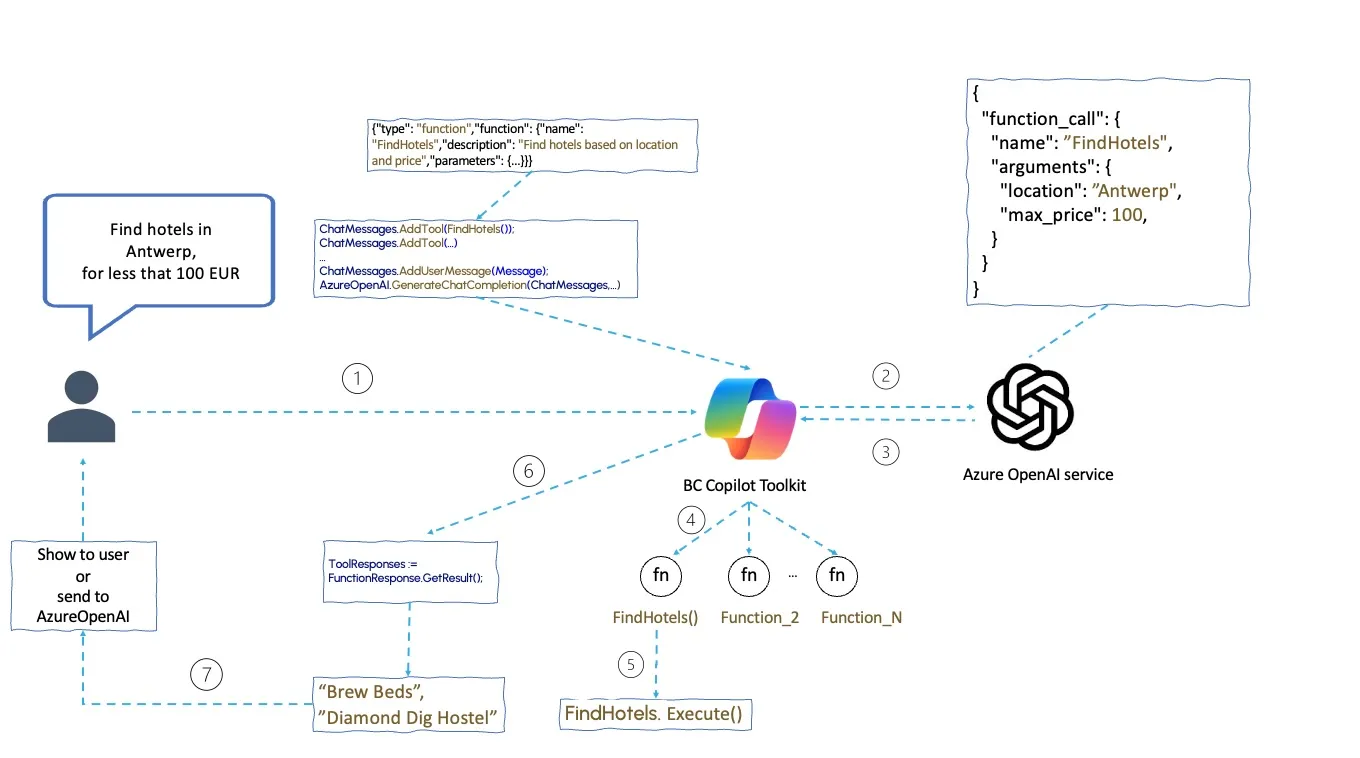
This diagram illustrates how the Copilot uses function calling to find hotels in Antwerp for less than 100 EUR per night.
- User Input: The user asks, “Find hotels in Antwerp for less than 100 EUR per night.”
- Add Function Tool: The Copilot Toolkit adds the
FindHotelsfunction tool to the chat messages. - Generate Chat Completion: The user’s message and the available tools are sent to Azure OpenAI for processing.
- Function Call Identification: Azure OpenAI identifies the function to call (
FindHotels) and the necessary arguments based on the user’s request. - Execute Function: The
FindHotelsfunction is executed in Business Central with the specified arguments (location and max price). - Retrieve Function Response: The response from the
FindHotelsfunction, including the list of available hotels, is gathered. - Display Results: The results are shown to the user or sent back to Azure OpenAI for further processing.
Info
In the event assistant copilot we will show the function result directly to the user. However, you can also send the results back to Azure OpenAI for further processing. For more information, refer to the Copilot Toolkit: Function Calling blog.
How many times do we call Azure OpenAI in this process?
Exactly, just once. Instead of sending customer data, we only send the list of available AL functions. This approach ensures that no customer data leaves the system.
Setup Azure OpenAI Integration
Follow these steps to configure the Azure OpenAI service, ensuring that your copilot can generate and handle responses effectively.
1. Open the Implementation Codeunit
Navigate to the "src\5-EventAssistantCopilot\Implementation\EventAssistImpl.Codeunit.al" file in your development environment.
2. Configure Azure OpenAI Authorization
Initialize the Azure OpenAI to enable the copilot and authorize it to use the AI models:
if not AzureOpenAI.IsEnabled(Enum::"Copilot Capability"::"GPT Event Assistant") then
    exit;

AzureOpenAI.SetCopilotCapability(Enum::"Copilot Capability"::"GPT Event Assistant");
AzureOpenAI.SetAuthorization(Enum::"AOAI Model Type"::"Chat Completions", CopilotSetup.GetEndpoint(), CopilotSetup.GetDeployment(), CopilotSetup.GetSecretKey());
AOAIChatCompletionParams.SetTemperature(0);
Tip
When using function calling set the temperature to 0 to ensure consistent responses.
3. Define Tools
Define the tools within your codeunit to interact with the Azure OpenAI. These tools represent specific functionalities that the AI can recommend based on user input. Each tool should be implemented in a separate codeunit.
var
    GetSessionDetailsByNameTool: Codeunit "GPT GetSessionDetailsByName";
    GetSpeakerScheduleTool: Codeunit "GPT GetSpeakerSchedule";
    GetTotalSessionsTool: Codeunit "GPT GetTotalSessions";
    GetTotalSessionsByTrackTool: Codeunit "GPT GetTotalSessionsByTrack";
    AOAIFunctionResponse: Codeunit "AOAI Function Response";
    FunctionResponses: List of [Codeunit "AOAI Function Response"];
4. Add Tools to Chat Messages
Add predefined tools to the chat messages, which the AI will recommend to call, based on the user's queries:
GetSessionDetailsByNameTool.SetProjectCode(ProjectNo);
AOAIChatMessages.AddTool(GetSessionDetailsByNameTool);

GetSpeakerScheduleTool.SetProjectCode(ProjectNo);
AOAIChatMessages.AddTool(GetSpeakerScheduleTool);

GetTotalSessionsTool.SetProjectCode(ProjectNo);
AOAIChatMessages.AddTool(GetTotalSessionsTool);

GetTotalSessionsByTrackTool.SetProjectCode(ProjectNo);
AOAIChatMessages.AddTool(GetTotalSessionsByTrackTool);
Each tool is configured with a project code and then added to the chat messages. This allows the Azure OpenAI to recognize and suggest the appropriate tool based on the context of the user’s question.
4. Process User Queries
Add the user's question to the chat messages and invoke Azure OpenAI to get the function recommendations:
AOAIChatMessages.AddUserMessage(Question);
AzureOpenAI.GenerateChatCompletion(AOAIChatMessages, AOAIChatCompletionParams, AOAIOperationResponse);
5. Handle AI Responses
Process the Azure OpenAI's response to determine which function was executed and display the results:
if not AOAIOperationResponse.IsSuccess() then
    Error(AOAIOperationResponse.GetError());

FunctionResponses := AOAIOperationResponse.GetFunctionResponses();
foreach AOAIFunctionResponse in FunctionResponses do begin

    // attendee should uncomment this block [start]
    if AOAIOperationResponse.IsFunctionCall() then begin
        if AOAIFunctionResponse.IsSuccess() then
            Answer := AOAIFunctionResponse.GetResult();
    end else
        Answer := AOAIChatMessages.GetLastMessage();

end;
Info
The AOAIOperationResponse.GetFunctionResponses() method, which is available from Business Central 25.0 onwards, returns all function responses as determined by the model. To obtain the result of a specific function, you need to iterate through all responses using AOAIFunctionResponse.GetResult(). However, if you're using a version prior to 25.0, you should use the AOAIOperationResponse.GetFunctionResponse() method, which retrieves only the first function response.
Important
The Azure OpenAI doesn't directly execute any functions but recommends what function to call and with what parameters. Starting from Business Central 24.2, the Copilot Toolkit automatically runs the recommended function with proposed parameters. This means you should not save any data to the database within your function. The Copilot should be a safe environment, keeping the user in the loop, and any data should only be committed to the system upon user approval.
Important Considerations
- Function Definitions: Clearly define all functions that the AI might recommend, including name, description, and expected parameters.
- AI Recommendations: The Azure OpenAI doesn't directly execute any functions, only recommends what function to call and with what parameters.
- Execution of Function: Copilot Toolkit automatically runs the recommended function with proposed parameters. Ensure that your functions are safe and don't save any data to the database without user approval.
Conclusion
You have now integrated AI logic into your Event Assistant Copilot, allowing it to process and respond to queries effectively. This setup enables dynamic interactions within Business Central, enhancing user experience with intelligent responses based on real data.
Next Steps
Move on to the next step where you will define the functions, AI will choose, and Copilot Toolkit will run them in your Dynamics 365 Business Central.