Create Coding Guidelines
Here you will download the official Microsoft AL coding guidelines and wire them into your project so every agent session follows them automatically. You'll also generate AGENTS.md — the file that tells the agent what this project is and how to work in it.
There are three ways to do this:
- Manually — download the files yourself, place them in the right folder, write
AGENTS.mdby hand. Works once. Easy to forget on the next project. - Prompt the agent each time — paste a prompt into every new repo you start. Repeatable, but repetitive.
- Skill — write the instructions once as a reusable skill file. Invoke it by name in any repo, any time. This is what we'll do.
Why coding guidelines matter
Without shared rules, quality drifts. Every new session is a fresh start. The agent makes up patterns, inconsistencies creep in, and the codebase turns into whoever-asked-last's preference.
Coding guidelines are the contract between you and the agent. They say: this is how we write AL here, always.
Microsoft BCQuality
Microsoft and the community are building BCQuality — a curated knowledge base and skills library for BC development. It provides machine-readable quality guidance that agents can consume directly to review code, generate solutions, and maintain consistent standards across teams. The AL vibe coding rules we download here are part of this broader effort.
Step 1 — Save the skill file
A skill is a reusable agent workflow stored as a markdown file. Instead of writing a long prompt every time, you invoke it by name. This one will download the official AL coding rules, wire them into your project, and write AGENTS.md automatically.
Close the workspace first
The skill creates files in folders not yet part of your workspace (.cursor/rules/, .cursor/skills/). If you're in the workspace view, the agent may not be able to write there correctly.
Close the workspace and open the repo root folder:
File → Open Folder… → select Workshop-Agentic-Coding-AL
Once the skill finishes, switch back: File → Open Workspace from File…
Create .cursor/skills/setup-al-vibe-rules.md and paste this content:
setup-al-vibe-rules.md — click to expand
---
name: setup-al-vibe-rules
description: Bootstrap an AL project with the official Microsoft AL vibe coding rules
  from the alguidelines GitHub repo. Downloads all rule files to .cursor/rules/, adds
  .cursor/ to the workspace file, and writes or updates AGENTS.md with a standard
  three-section scaffold. Use when starting a new AL project, onboarding a new
  developer, or refreshing stale rule files.
disable-model-invocation: true
---

# Setup AL Vibe Coding Rules

Fetches the official Microsoft AL coding rules from GitHub and wires them into the
Cursor project so every future agent session follows them automatically.

## Step 1 - Discover files in the GitHub folder

Call the GitHub Contents API to get the current file list (never hard-code filenames):

GET https://api.github.com/repos/microsoft/alguidelines/contents/content/docs/agentic-coding/vibe-coding-rules

Parse the JSON response and collect every entry where "type": "file".
Extract the name and download_url of each file.

## Step 2 - Download each file directly into .cursor/rules/

Ensure the .cursor/rules/ directory exists, then download every file from its
download_url into .cursor/rules/<filename>.
Do NOT use WebFetch and then Write - download straight to disk.

On Windows (PowerShell), run all downloads in one shell call:

New-Item -ItemType Directory -Force -Path ".cursor/rules" | Out-Null
Invoke-WebRequest -Uri "<download_url>" -OutFile ".cursor/rules/<filename>"

Chain multiple downloads with ; so every file is saved in a single round-trip.

## Step 3 - Add .cursor/ to the workspace file

The .code-workspace file is at the repo root (same directory as app/, specs/, AGENTS.md).
Do not assume the current working directory is the repo root when inside a workspace.

Locate the workspace file explicitly:

$repoRoot = (Get-Item (Resolve-Path "specs/brief.md")).Directory.FullName
$workspaceFile = Get-ChildItem -Path $repoRoot -Filter "*.code-workspace" |
  Select-Object -First 1 -ExpandProperty FullName

Then read the JSON, add { "path": ".cursor" } to the folders array if not already
present, and write it back.

## Step 4 - Write AGENTS.md

Write (or overwrite) AGENTS.md in the repo root with exactly this content:

# <Project Name> - Project Rules

## What this project is

<One sentence about the BC extension and its business domain.>
Read specs/brief.md for the full customer brief.

## SDD process

This project uses Spec-Driven Development. Before implementing anything:

1. Read specs/tech-design.md and specs/roadmap.md
2. Every feature lives on branch spec/YYYY-MM-DD-feature-name
3. Create specs/YYYY-MM-DD-feature-name/requirements.md + plan.md + acceptance.md
   before writing any code
4. Loop: Spec - Implement - Test - Docs - Merge

## AL coding standards

See .cursor/rules/ for detailed rules.

---
Fill in the project name and the one-sentence description from specs/brief.md.
Do not add extra sections. Write it exactly as shown.

## Verification

After completing all steps, confirm:
- .cursor/rules/ contains all files from the GitHub folder
- .code-workspace has { "path": ".cursor" } in folders
- AGENTS.md exists at the repo root with all three sections

## Notes
- Always fetch from GitHub - never generate or paraphrase rule content.
- AGENTS.md should be kept short; detailed rules live in .cursor/rules/.
Global vs project skills
Saving to .cursor/skills/ in the project root makes the skill available to everyone who clones the repo. To make it available across all your projects, save it to ~/.cursor/skills/ instead.
Step 2 — Invoke the skill
Open a new chat. Select Claude Sonnet. Then simply type:
The agent matches the skill by description and runs all four steps automatically — no long prompt needed.
Commit
git add .cursor/skills/setup-al-vibe-rules.md AGENTS.md .cursor/rules/
git commit -m "Add AL vibe coding rules, AGENTS.md, and setup skill"
Expected result
When the skill completes, your repo should look like this:
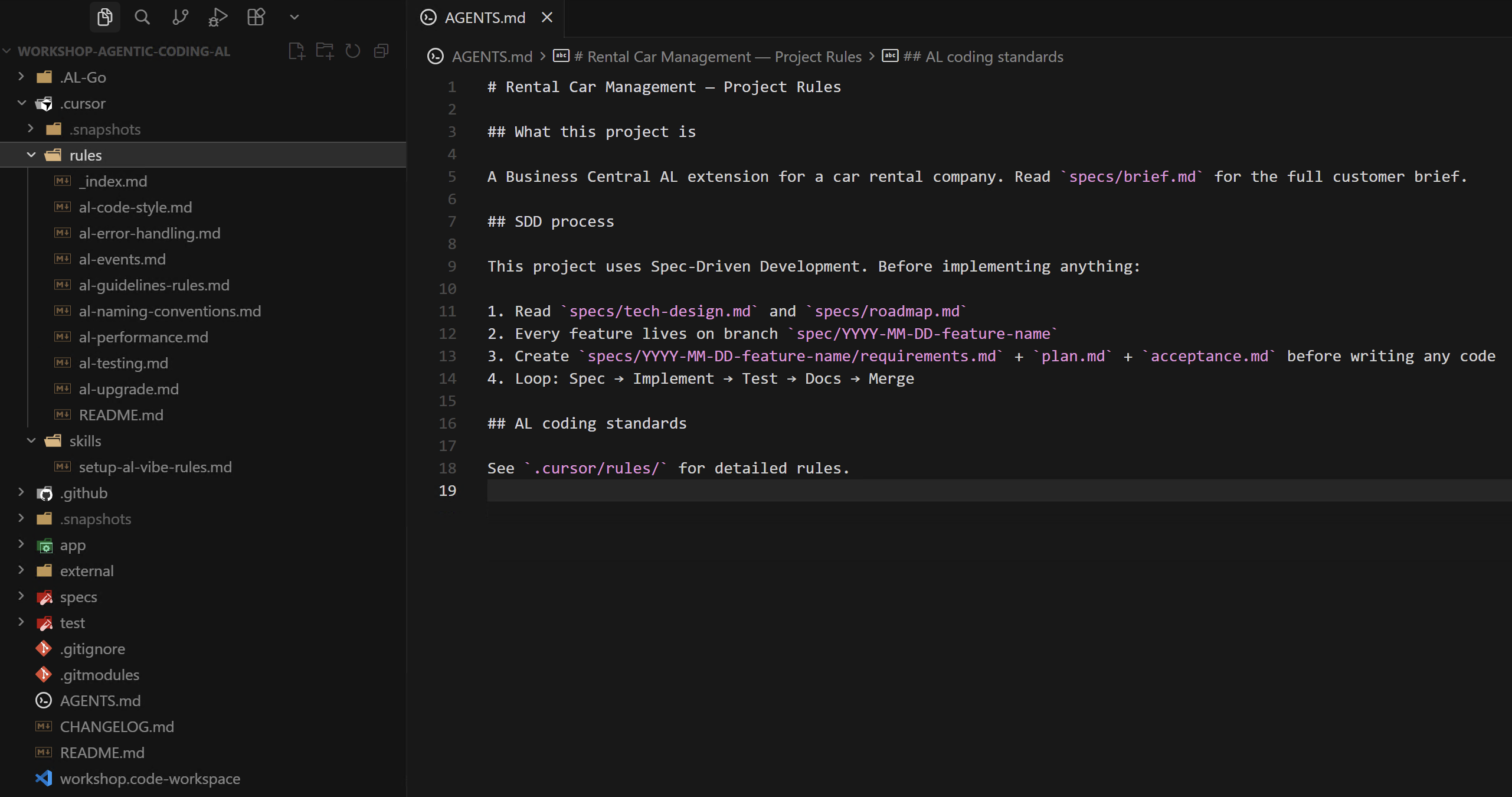
Your coding guidelines are now wired in. Every future agent session opens with the AL rules and project context loaded automatically.