Test — Car Fleet
The code is written. Don't merge yet — you haven't verified it works.
1. Publish the app
Deploy the extension to your BC container. In Cursor, click on the app\app.json file and publish manually via the AL extension: Ctrl+F5 (or Ctrl+Shift+P → AL: Publish without debugging).
Wait for the deployment to finish before continuing.
2. Manual test
Open BC and walk through the core scenario by hand. The agent wrote the code — you confirm it works as a user would experience it.
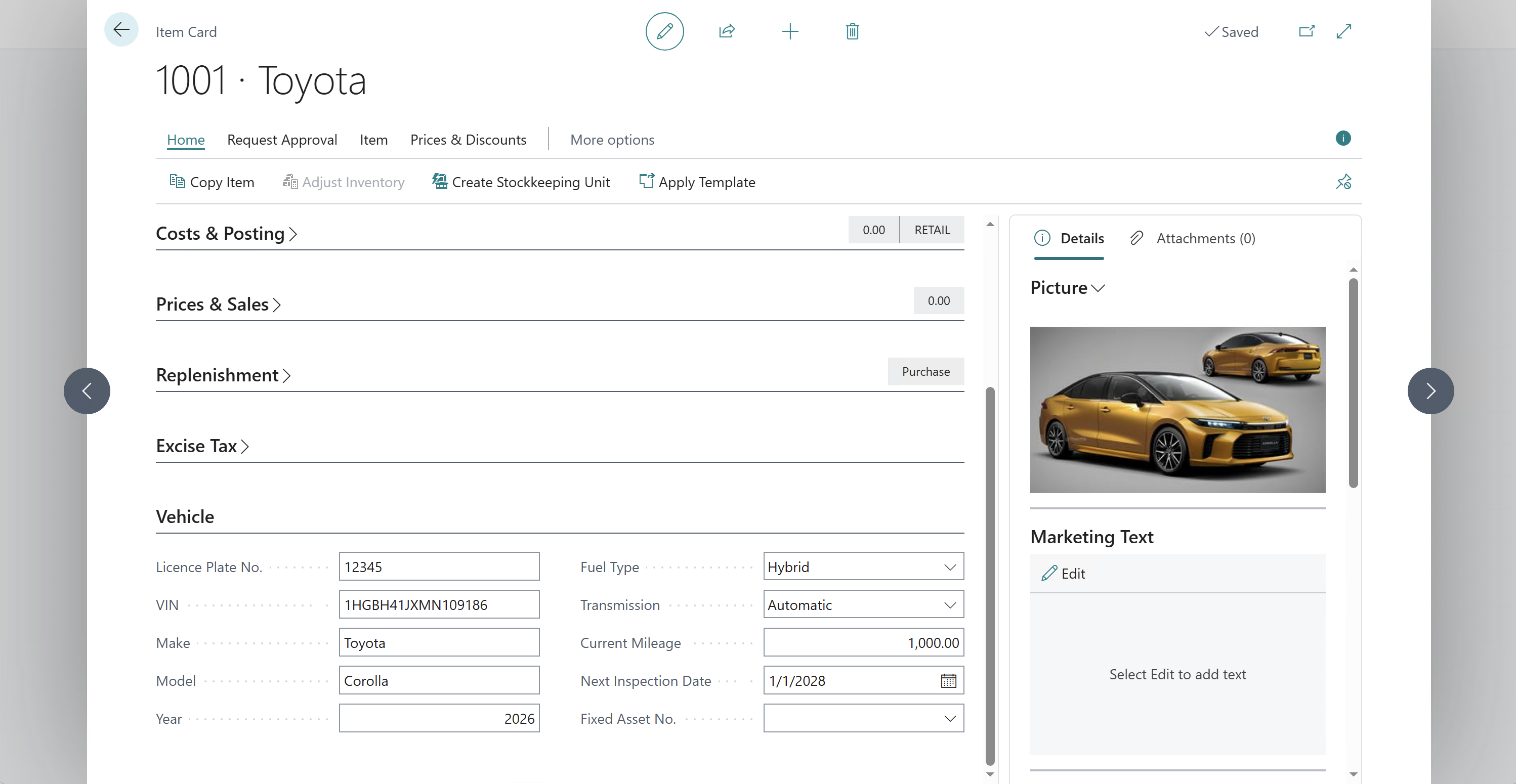
- Navigate to Items
- Click New — select a
Non-Inventorytemplate - On the Item Card:
- Description: enter a car name (e.g.
Toyota Corolla) - Base Unit of Measure: set to
DAY - Fill in the Vehicle group fields:
- Licence Plate No.:
12345 - VIN:
1HGBH41JXMN109186 - Make:
Toyota - Model:
Corolla - Year:
2026 - Fuel Type: select a value
- Transmission: select a value
- Current Mileage:
1000 - Next Inspection Date: a future date
- Licence Plate No.:
- Description: enter a car name (e.g.
3. Automated tests
Every agent session can change existing code. Without automated tests, there is no reliable way to know whether a fix, a refactor, or a new feature quietly broke something that was working before.
The faster the agent generates code, the faster it can introduce regressions and bugs. Tests are the only check that keeps pace with it.
Review the test codeunit the agent wrote. Check that:
- Each acceptance scenario from
acceptance.mdhas a corresponding test procedure - Test procedures assert specific outcomes (not just "no error")
- Test data is created and cleaned up in the test, not assumed to exist
If any scenario is missing, ask the agent to add it before continuing.
4. Publish the test app
Click on the test\app.json file and publish manually via the AL extension: Ctrl+F5 (or Ctrl+Shift+P → AL: Publish without debugging).
5. Run the tests
In BC, navigate to the AL Test Tool page:
- Search for AL Test Tool in the search bar or navigate directly
- Click Get Test Codeunits — select all and confirm
- Click Run Tests
Wait for the run to complete.
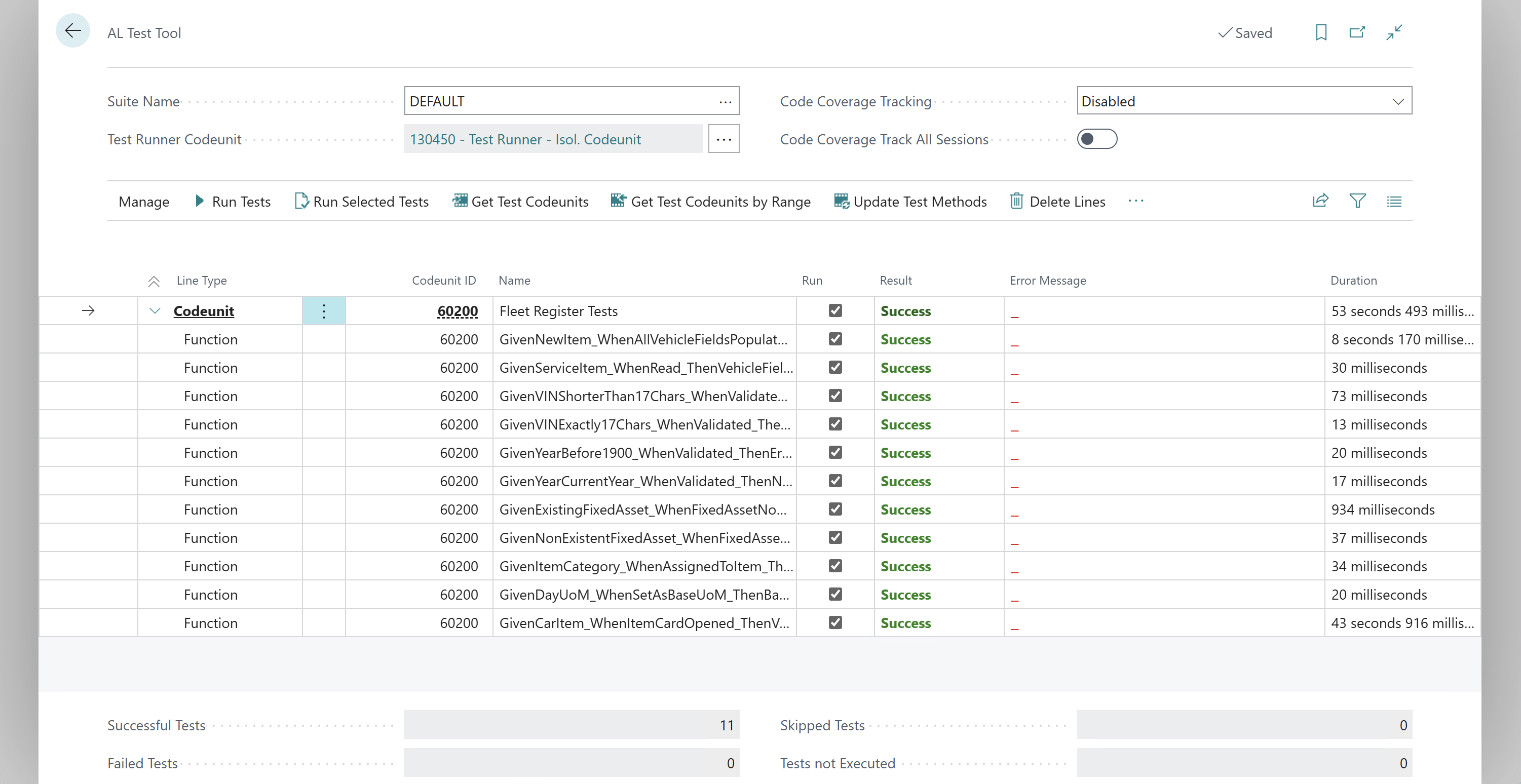
All tests should show green. If any fail:
- Click on the failing test line and press Ctrl+C — this copies the full row including the error message
- Go to the chat and paste it with Ctrl+V, asking the agent to fix the issue
Watch how the agent handles failures
Agents are trained on human developers — which means they've also learned some bad habits. When a test fails, an agent may decide to delete the test or quietly adjust the implementation so the wrong behaviour passes instead of the right one.
Always read what the agent changed. A fix that makes a test green by removing the assertion is not a fix. Agents do this more often than you'd expect — because humans, unfortunately, do too.